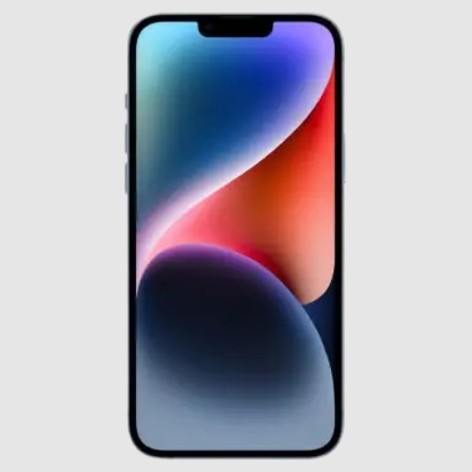
Before we hand over a device, there is one thing that matters more than the asking price: making sure personal information is completely gone. Before we sell iPhone 14 Plus, clearing all personal data protects privacy and prevents unwanted access to information.
Photos, messages, saved passwords, banking apps, and Apple ID credentials do not disappear on their own when a phone changes hands. Taking a few minutes to wipe the device properly is the step that separates a clean, confident transaction from a serious privacy risk.
When we sell iPhone 14 Plus, the data wipe process is straightforward, but the order in which each step is completed matters. If one step is skipped, the next recipient may not be able to use the device, or sensitive data could remain accessible. Here is exactly what we do before shipping it out.
Our iPhone 14 Plus holds far more than app icons. It stores saved Wi-Fi passwords, autofill credit card numbers, health data, location history, and app-specific logins for everything from banking to email. A factory reset that is not completed correctly can leave fragments of this data accessible to the next person who receives the phone.
A proper iPhone 14 Plus data wipe removes all of this in one step, but only after we sign out of iCloud and disable Find My. That sequence makes the reset permanent and the device ready for a new owner.
There is also a practical reason to get this right: a clean, unlocked device can receive a stronger offer. Buyback services can process it immediately without flagging activation lock issues, resulting in faster payment and fewer complications.
Before anything else, we back up the data we want to keep. We use two options: iCloud backup or a local backup on a computer using Finder (Mac) or iTunes (Windows).
This step is essential: once the reset is completed, no recovery remains on the device.
This is the most important step to take before we erase iPhone data. Signing out of iCloud removes the Apple ID from the device and disables Activation Lock, the security feature that prevents unauthorized setup of the phone.
If this step is skipped, the device remains tied to the Apple ID after reset. The next owner cannot activate it, and most buyback services, including those where we sell iPhone 14 Plus, will flag it as activation locked and adjust the offer accordingly.
Find My is Apple's built-in tracking feature. It is tied directly to the Apple ID and must be disabled before performing a factory reset. In many cases, signing out of iCloud turns it off automatically, but we always verify it manually.
We can also remove the device from the account remotely via iCloud.com if access to the phone is no longer available. We log in, go to Find My, select the device, and then choose Remove from Account.
With iCloud signed out and Find My off, we proceed with a full data wipe on the iPhone 14 Plus. This step removes all content and settings and restores the device to factory condition.
When complete, the device displays the "Hello" setup screen, confirming the reset was successful.
The most common reason a decision to sell iPhone 14 Plus encounters issues is an active Apple ID still attached to the device during inspection. If the phone is still tied to the account, it cannot be set up, tested, or processed smoothly.
When we properly erase iPhone data before shipping, we remove that obstacle completely. The inspection process moves faster, and there are no delays caused by account locks or verification issues.
A device that arrives wiped and unlocked also tends to retain its quoted value. If a buyback service receives a phone that is still tied to an account or has not been reset correctly, the offer is often adjusted or paused until the issue is resolved.
Once the device is wiped, the process to sell iPhone 14 Plus becomes straightforward. At The Tech Buyers, we complete a short form about device condition and receive an instant cash offer. There is no negotiation or marketplace listing involved.
The Tech Buyers provide a prepaid shipping label once the offer is accepted. The phone is packed and dropped off at a UPS location, and the team handles inspection and payment. The quote remains valid for 14 days after acceptance.
A properly completed iPhone 14 Plus data wipe helps the device move through inspection without delays. That means faster payment and a smoother transaction from start to finish. We head to The Tech Buyers to get an instant quote when ready.